
How to use SparkMarker
This guide is for SparkMarker, the edition that keeps everything in your browser. Working with a team? See SparkMarker Team.
- Get started
- Pick the right element
- Work with comments
- Share your comments
- Check accessibility
- Switch it on and off
- Back up your comments
Get started
- Install it Add SparkMarker from the Chrome Web Store, then pin it to the toolbar from Chrome's puzzle-piece menu.
- Switch it on Open the page you want to review, click the SparkMarker toolbar icon and turn on Show the comment dock on pages. A dock appears at the bottom of the page.
- Start a comment Click the speech bubble in the dock, or press Alt+Shift+C. The first time, SparkMarker asks for the name to show next to your comments. There is no account.
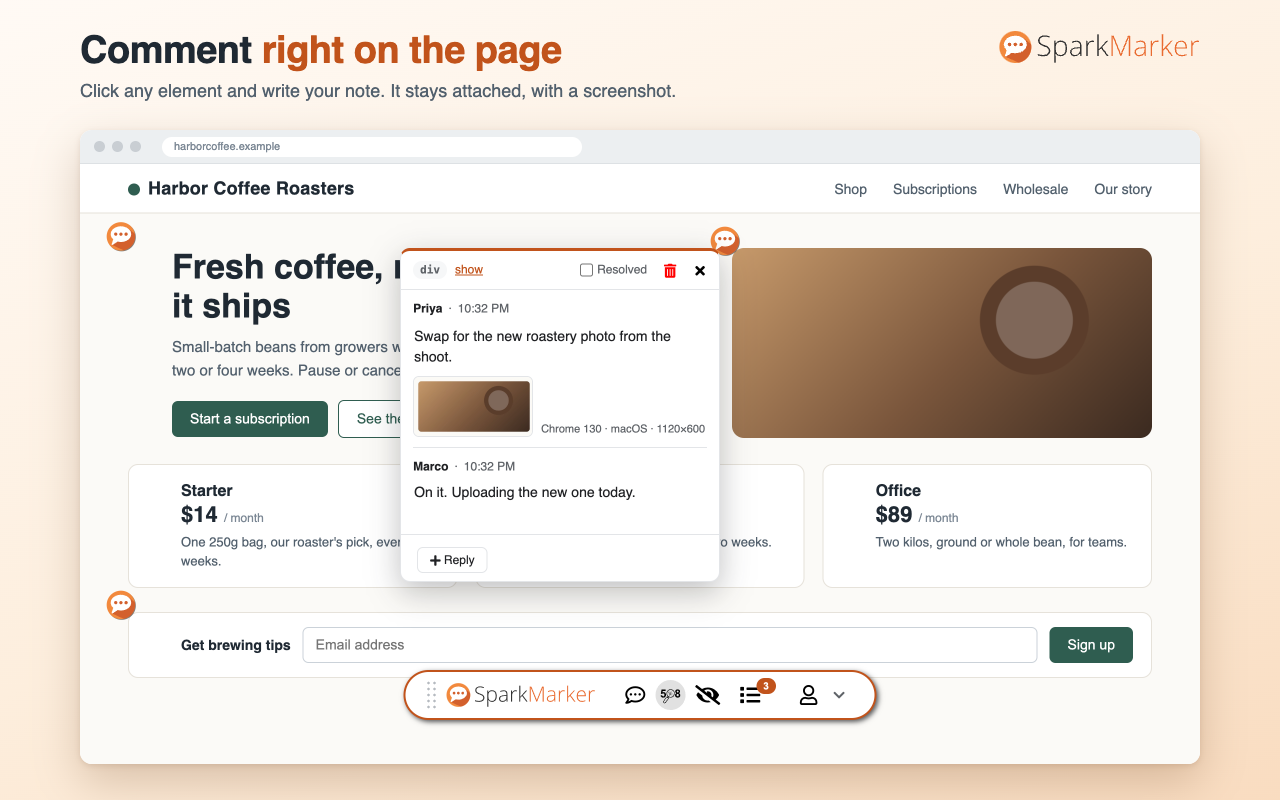
- Click the element Move the pointer over the page; the element under it is outlined. Click it, write your comment and save. A marker is placed on the element.
Pick the right element
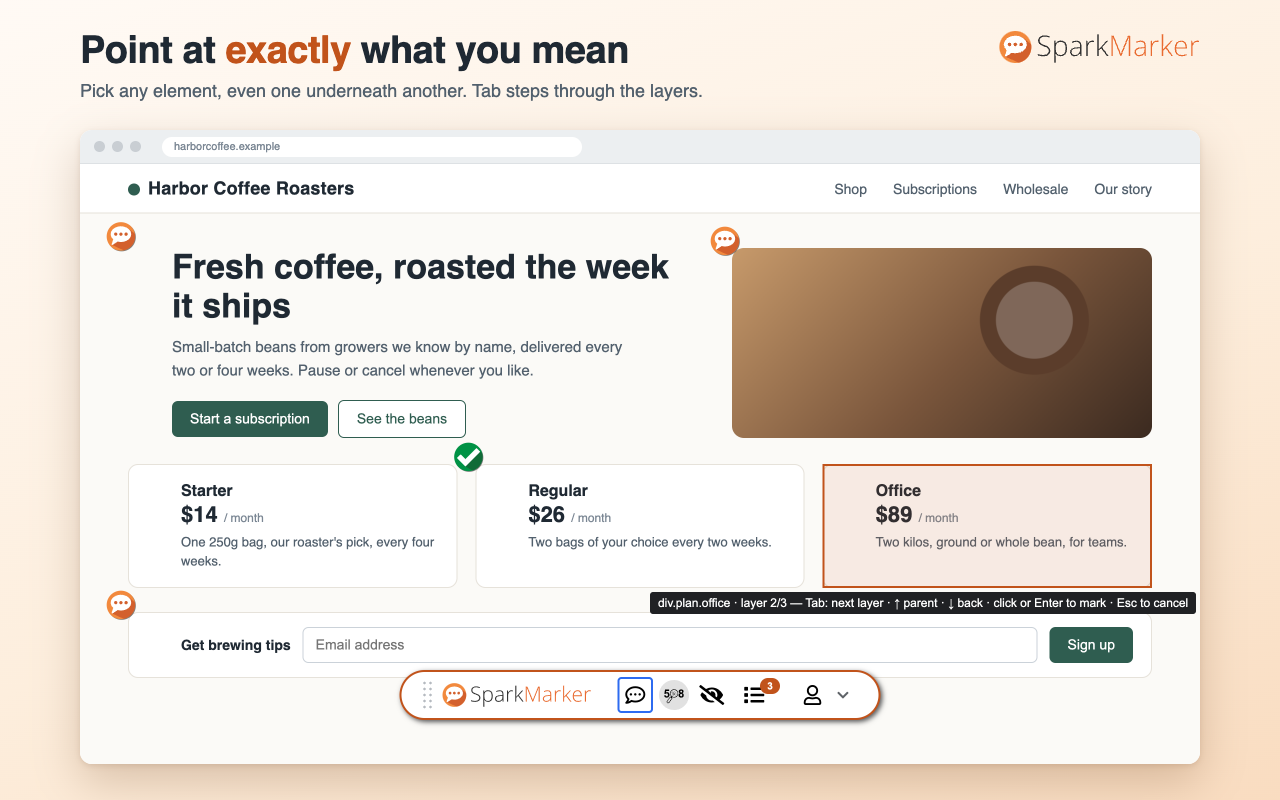
While you are picking, the outline shows exactly what will be marked. When the pointer alone does not reach it:
- Tab steps to the next layer under the pointer, for elements covered by others. Shift+Tab steps back.
- ↑ moves out to the surrounding element; ↓ moves back in.
- Enter or a click marks the outlined element. Esc cancels.
Work with comments
- Open a comment by clicking its marker. Markers that sit close together are grouped into one marker showing how many there are.
- Reply with the Reply button, and tick Resolved when the point is dealt with.
- See everything with the list icon in the dock: all comments for this page or the whole site, with search and an open or resolved filter. Click one to jump to its element.
- Hide the markers for a clear view of the page with the eye icon; click it again to bring them back.
- Delete a comment with the bin icon in its toolbar.
Markers stay attached to their element when the page is scrolled, resized or reloaded. If the page changes so much that an element can no longer be found, its comment remains in the list.
Share your comments
Open the comment list and use the share button:
- Copy as Markdown to paste into GitHub, Jira or Slack.
- Save as CSV for a spreadsheet.
- Save as a file that a colleague can import into their own SparkMarker, and import one they sent you.

Check accessibility
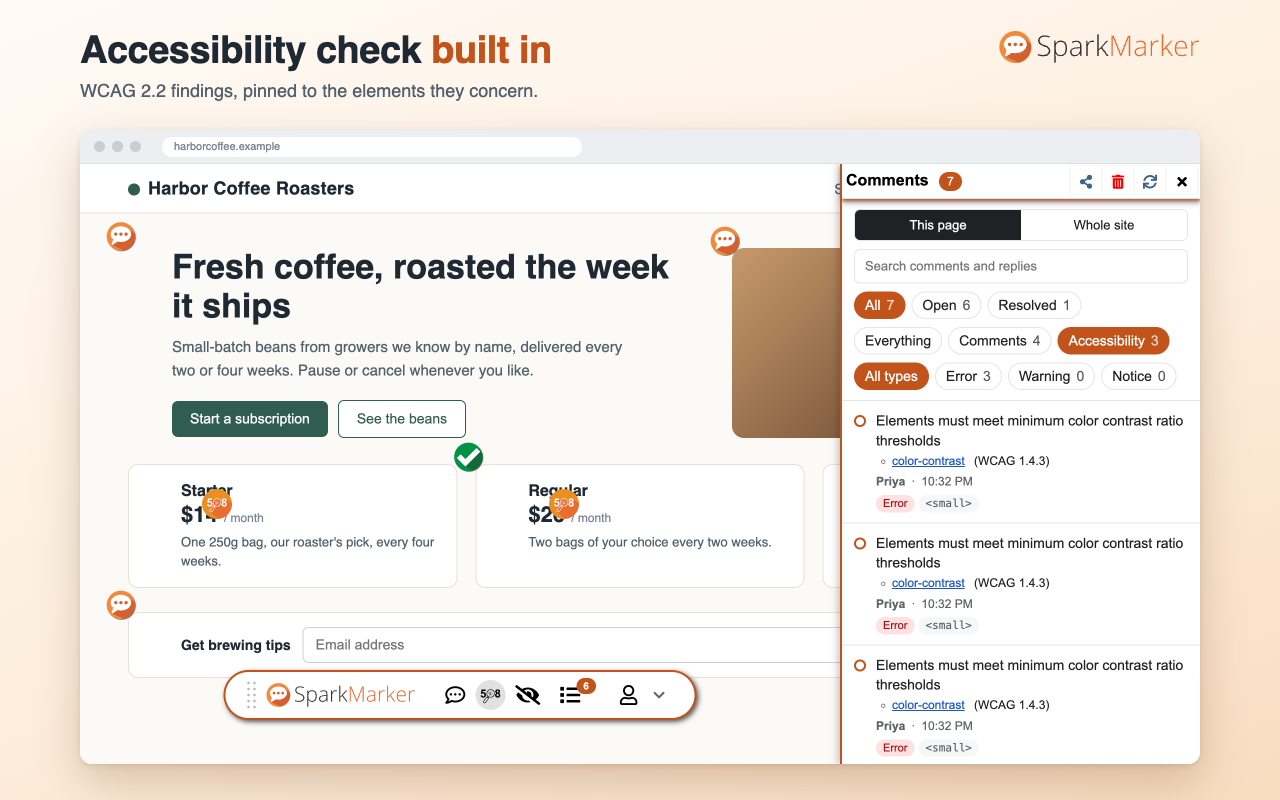
Click the 508 icon in the dock to check the current page against WCAG 2.2. Each finding is placed on the element it concerns, with its severity and a link to the rule it comes from. The check runs in your browser.
An automated check finds only part of what makes a page accessible. Treat it as a first pass, not as proof of conformance.
Switch it on and off
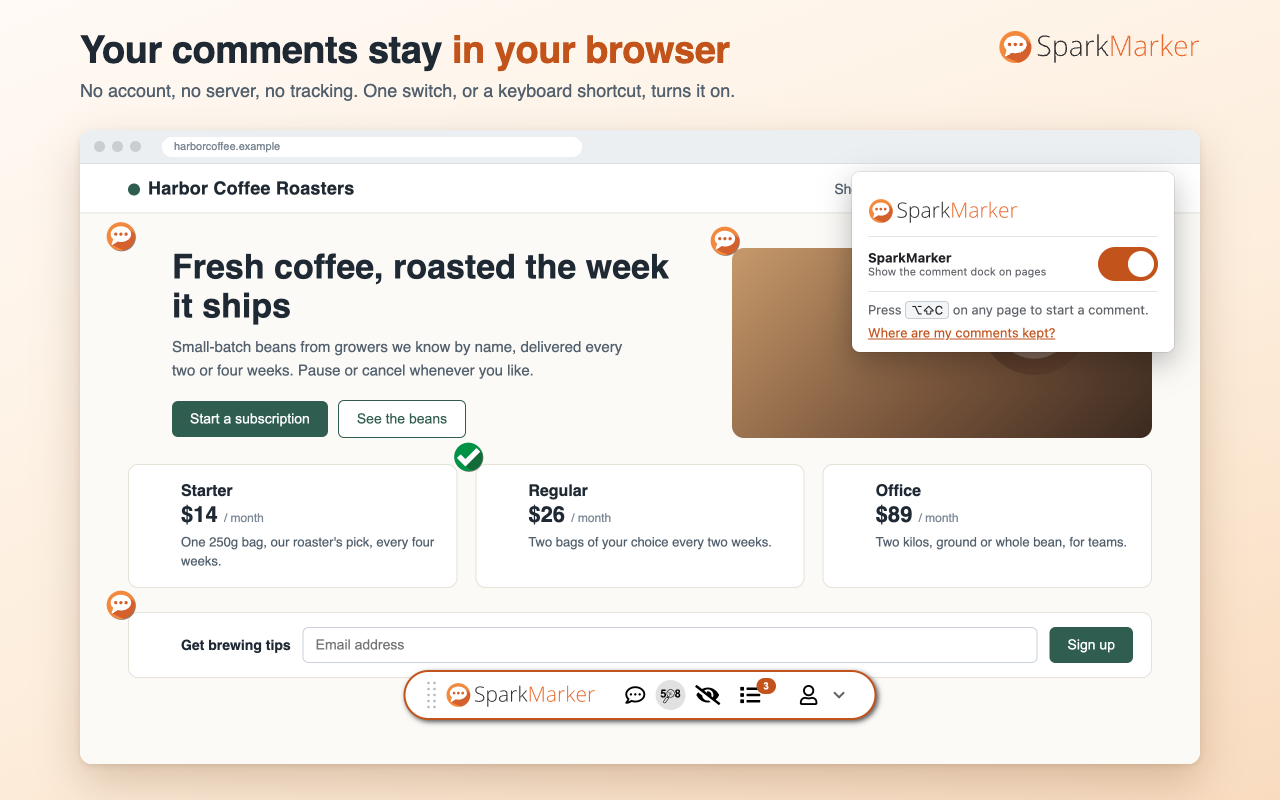
The toolbar popup has two switches: one for SparkMarker everywhere, and On this site to keep it off for individual sites. Until you switch it on, SparkMarker does nothing on a page.
Back up your comments
Comments, replies and screenshots are stored in this browser only. Removing the extension, or clearing its data, deletes them. To keep a copy, right-click the toolbar icon, choose Options, and use Download a backup. Restore from a file brings it back, in this browser or another.
Questions
Write to sparklabs@sparksoftcorp.com, or use the feedback form in the dock. See also the privacy policy.